

Over the past few years, more and more businesses have shifted to hybrid or fully remote operations. This means that if you want to create a polished video whether it’s a corporate message, a case study, or a training module you might be coordinating contributors spread across cities, countries, or even time zones.
Remote video production has become a vital skill. But let’s be honest: filming with distributed teams can feel daunting. How do you keep quality consistent when everyone’s using different cameras, lighting, and spaces? How do you direct people effectively when you’re not there in person? The good news is, with the right approach, you can create professional, cohesive videos no matter where your team is located.
In this guide, I’ll walk you through the essentials of running a smooth remote production, from tech setup to directing contributors and syncing everything in post.
Start with a Clear Plan
Remote shoots demand a higher level of preparation than in-person filming. Since you’re not all working in the same physical space, it’s much easier for details to get lost in translation or for miscommunications to slow down the process. That’s why having a clear, detailed plan from the outset is essential.
Begin by defining your goals. What is the key message you want the video to communicate? Understanding this from the start will guide every decision, from tone and style to editing and delivery. Next, outline your format. Is the video going to be an interview with a single speaker, a panel discussion with multiple participants, a narrated presentation, or a combination of different elements like slides, voiceovers, and live-action footage? Then, make a comprehensive list of contributors. Who will appear on camera? What role will each person play, and what do they need to prepare in advance such as scripts, talking points, or tech checks?
Finally, create a detailed shot list. Think about which camera angles, types of background, and visual elements you’ll need to capture to make the video flow smoothly. Are you using multiple camera setups or just one? Do you want close-ups, wide shots, or screen shares? By making sure every participant understands the plan and what’s expected of them ahead of time, you’ll avoid confusion, save valuable time, and make the shoot day run far more smoothly.
Choose the Right Tools and Platforms
Technology can make or break the success of a remote video shoot. The right setup will keep things running smoothly and help you avoid frustrating delays, poor-quality footage, or communication breakdowns. To get the best results, you’ll need to think about four key categories of tools. First, select reliable video conferencing software. Platforms such as Zoom, Microsoft Teams, and Google Meet are ideal for coordinating and directing live sessions, especially when you need real-time interaction with contributors. However, while they’re excellent for communication, they generally compress video and audio, so they shouldn’t be your primary method of recording footage.
Instead, use dedicated recording software that allows contributors to record locally on their devices. Tools like Riverside.fm and SquadCast are built for this purpose. They enable you to guide talent remotely while capturing high-resolution video and crystal-clear audio directly from each participant’s device, reducing the risk of glitches or lag that often occur with streaming-based recordings. You’ll also need collaboration platforms to keep everyone on the same page. Cloud storage services such as Google Drive, Dropbox, or OneDrive make it easy to share assets like scripts, storyboards, reference visuals, and final outputs with the entire team. Everyone can access the most up-to-date files without endless email chains.
Lastly, use project management tools to track tasks, assign responsibilities, and monitor progress. Options like Trello, Asana, Monday.com, or Notion help streamline workflows and give everyone visibility on deadlines, dependencies, and next steps. When your tools are working in sync, your shoot is far more likely to stay on track and on schedule.
Prepare a Remote Recording Kit
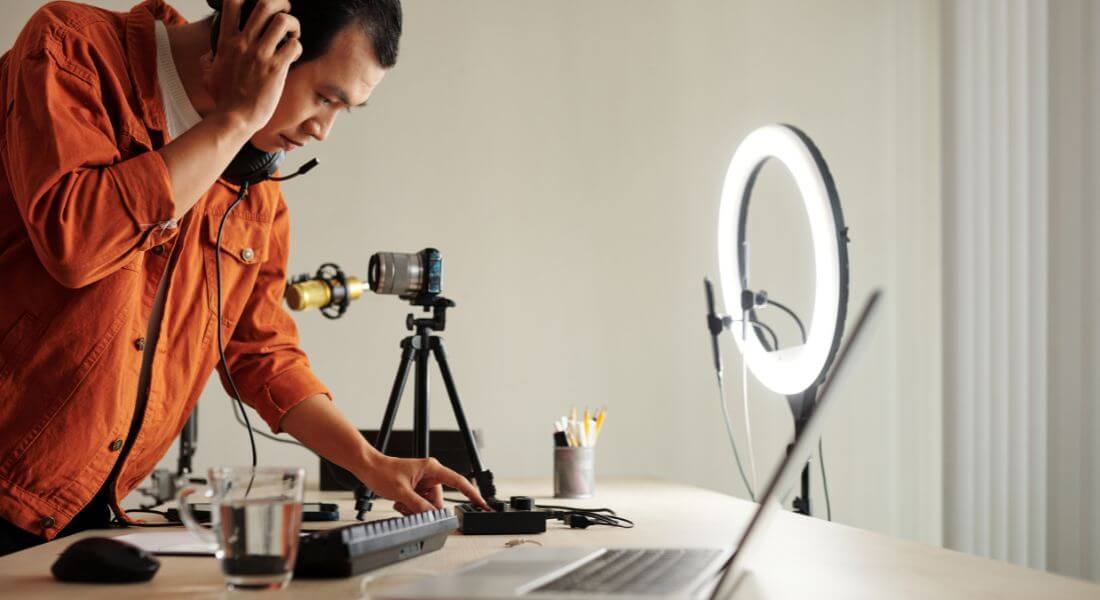
One of the best ways to ensure high production value in a remote shoot is to control the quality of the contributor’s setup as much as possible. If your budget allows, consider sending a remote recording kit to each participant ahead of time. This not only boosts the consistency of your footage but also makes the process easier for those who may not have access to professional equipment.
This can include:
Even a basic kit can make a noticeable difference in how polished your final video looks and sounds. Here are some items to include:
- A high-quality webcam or camera
A good webcam like the Logitech Brio provides crisp 4K video and performs well in different lighting conditions. For even better results, consider sending a mirrorless camera (such as a Sony ZV-E10 or Canon M50) along with a compatible HDMI capture card. - A USB microphone or clip-on lapel mic
Clear audio is often more important than perfect visuals. A plug-and-play USB microphone like the Blue Yeti or Samson Q2U can drastically improve sound quality. Alternatively, a lapel mic such as the Rode Lavalier GO offers great results while staying out of the shot. - An LED light panel
Lighting can make or break how someone appears on screen. A small, adjustable LED panel can help brighten their face evenly and reduce unwanted shadows, even in poorly lit rooms. - A sturdy stand or tripod
Whether it’s for a webcam, phone, or camera, a tripod ensures stable, shake-free footage. Choose a model that can be easily adjusted for height and angle to suit different setups. - Clear setup instructions
Include a simple, step-by-step guide with visuals or a short video tutorial explaining how to assemble and position the equipment. This makes it easy for non-technical users to get everything working correctly.
If it’s not possible to send physical gear, at the very least, provide detailed recommendations for what contributors should use and how to position their existing equipment. The more support you offer upfront, the better your shoot day will go and the more professional your final video will look.
Even a simple kit can dramatically improve the final result.
Optimise Internet and Computer Settings
Even with great gear and a solid plan, technical hiccups can derail a remote shoot. That’s why it’s crucial to make sure contributors prepare their internet connection and computer setup in advance.
Before the recording session, ask participants to take the following steps:
- Use a wired Ethernet connection instead of Wi-Fi
A direct connection to the router is far more stable than wireless internet. It reduces the risk of lag, jitter, or connection drops especially during longer sessions or when multiple people are sharing the network. - Close all unnecessary applications and background processes
Programs running in the background can quietly eat up CPU power and bandwidth. Ask contributors to shut down any apps they don’t need during the shoot, such as email clients, cloud backups, or streaming services. - Run an internet speed test
Use tools like Speedtest.net or Fast.com to check upload and download speeds before the session. Ideally, contributors should have a minimum of 10 Mbps upload speed for smooth video and audio transmission especially when using platforms that rely on real-time data capture. - Restart the computer before the session begins
A fresh reboot clears temporary files, resets RAM usage, and can improve system stability. It also ensures any updates or lingering background tasks are out of the way before recording starts.
You may also want to share a brief troubleshooting checklist or do a tech rehearsal the day before.
Set Up a Consistent Framing and Background
One of the biggest challenges in remote video production is making sure everyone’s footage looks cohesive.
Here’s how to guide contributors:
Framing:
- Eye level or slightly above.
- Head and shoulders visible, with a bit of space above the head.
Background:
- Simple and uncluttered (plain walls or branded backdrops work well).
- Avoid windows behind the speaker to reduce backlighting.
Lighting:
- Natural light from in front is ideal.
- If using a lamp or LED light, position it just above and in front of their face.
Standardise Audio Quality
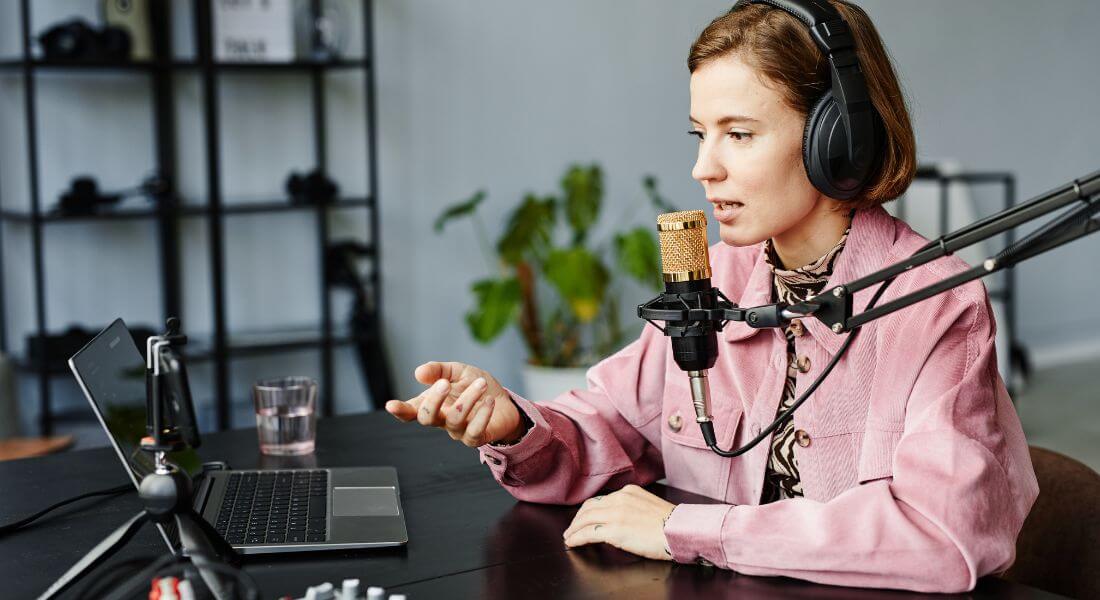
When it comes to video, audio quality is just as important if not more so than visuals. Viewers may forgive slightly grainy footage, but poor or inconsistent sound is much harder to ignore. In remote shoots, where each contributor is recording in a different environment, achieving audio consistency can be a real challenge.
Here are a few ways to improve remote audio and keep it consistent:
- Use an external microphone
Built-in laptop mics often produce thin, echoey, or muffled sound and are prone to picking up background noise. Instead, ask contributors to use an external USB microphone or lapel mic. Even a budget-friendly model can make a huge difference in clarity and tone. - Choose a quiet, echo-free space
Encourage participants to record in a quiet room with soft furnishings such as curtains, carpets, and cushions that help absorb sound. Avoid spaces with hard surfaces and bare walls, as these can cause reverb or make voices sound hollow. - Run a short test recording
Before the main session, have each contributor do a 30-second test to check for issues like background hum, mic rustle, or distortion. This gives you time to adjust settings, change mic positions, or troubleshoot problems before recording for real.
Remember, mismatched audio levels or ambient noise differences between speakers can be difficult and time-consuming to fix in post-production. Taking a few extra minutes to check and calibrate audio in advance can save hours of editing later and deliver a far more polished final product.
Direct Remotely with Confidence
Many people feel awkward on camera especially when filming themselves.
Your role as the remote director is to:
- Make them feel comfortable.
- Guide their delivery and pacing.
- Keep energy levels consistent.
How to do it well:
- Join a video call while they record locally.
- Offer clear instructions on posture, eye contact, and tone.
- Give gentle feedback after each take.
- Keep sessions relaxed but focused.
Record Multiple Takes
In a controlled studio environment, it’s easy to make real-time adjustments whether it’s repositioning a light, adjusting a microphone, or redoing a line with a director’s feedback. But in remote shoots, you don’t always have that luxury. Technical hiccups, background noise, or simple human error can easily slip through without being noticed until editing.
That’s why it’s smart to have contributors record multiple takes of each segment. Ask them to do at least two or three versions, even if the first one seems fine. They don’t need to be radically different just slightly varied in tone, pace, or delivery.
Here’s why it helps:
- You get backup options in case something goes wrong like a dog barking mid-sentence or the video glitching at a key moment.
- You can mix and match the best parts of different takes to create a smoother final cut.
- You allow for better performance choices, giving your editor more flexibility to select the most engaging delivery.
Let contributors know in advance that multiple takes are part of the process it’ll help them relax and avoid feeling like they need to be perfect on the first try. In the end, this simple step can make a big difference in both the quality and efficiency of your post-production workflow.
Collect and Organise Files Methodically
Once the recording is complete, the next crucial step is to collect and organise all assets in a way that keeps your post-production process smooth and efficient. With remote shoots, where files are coming in from multiple sources, disorganisation can quickly lead to lost footage, confusion over file versions, or delays in editing.
To avoid these issues, ask contributors to follow a simple but effective file handover process:
- Upload all raw video and audio files
Contributors should send their original, uncompressed recordings not versions exported from conferencing software. Use a shared cloud storage solution like Google Drive, Dropbox, or WeTransfer to centralise everything in one place. - Label every file clearly and consistently
File names should include the contributor’s name, content description, and take number. For example: John_Smith_Intro_Take2.mp4. This makes it easy for editors to identify and locate the right clips quickly without having to open and preview each one. - Include all supporting assets
Along with footage, contributors should upload any relevant visuals such as slide decks, logos, brand graphics, screen recordings, or reference documents. These assets often need to be integrated during the edit and should be stored in a dedicated “Supporting Material” folder. - Use structured folders
Organise files into subfolders for each contributor or by content section (e.g., “Interview Segments,” “Voiceovers,” “Graphics”) so everything is easy to navigate and track.
The more organised your files are from the start, the faster and smoother the editing process will be saving time, reducing errors, and keeping your project on schedule.
Maintain Consistent Branding
When contributors are filming from different locations, often using different gear and environments, visual and tonal consistency can easily get lost. That’s where strong, cohesive branding becomes essential. A few strategic edits during post-production can help unify the final video and maintain your brand’s identity regardless of how varied the original footage is.
Here are a few key ways to ensure consistency throughout your remote video:
- Use uniform lower-thirds, logos, and brand fonts
Design a consistent style for nameplates, titles, and other on-screen graphics. Ensure that your brand’s colours, typography, and logo placement stay the same across all segments. This helps tie everything together visually, even if the clips come from different sources. - Apply a cohesive colour grade across all footage
Different cameras and lighting setups can result in wildly varying tones. Applying the same colour correction or grading treatment to all clips can create a much more polished and professional look. This step is especially helpful in neutralising warm or cool colour casts from different lighting environments. - Stick to a single background music track
Choose one music bed that fits your brand’s tone whether upbeat, corporate, calm, or energetic and use it consistently across the video. Changing tracks mid-way can feel jarring unless there’s a specific narrative reason for it. - Keep transitions smooth and consistent
Whether you use cuts, fades, or graphic transitions, pick a style and stick with it. A unified editing rhythm helps maintain flow and gives your video a refined, intentional finish.
When you apply the same visual and audio standards across the board, your video feels cohesive, no matter how many different locations or contributors were involved. That kind of attention to detail is what makes a remote production look as seamless as an in-studio shoot.
Backup Everything
Remote shoots introduce more risk of lost files or corrupted uploads.
Before editing begins:
- Download all files locally.
- Store a backup copy in cloud storage.
- Consider using an external hard drive as an extra layer of security.
Final Thought: Making Remote Production Work Seamlessly
Remote video production has become a normal part of working life and when done well, it can look every bit as professional as an in-person shoot.
The key is preparation: plan carefully, guide your contributors clearly, and stay organised from start to finish. If you’d like help managing your next remote video project, you can contact our video production company in London to take your video content to the next level.
