

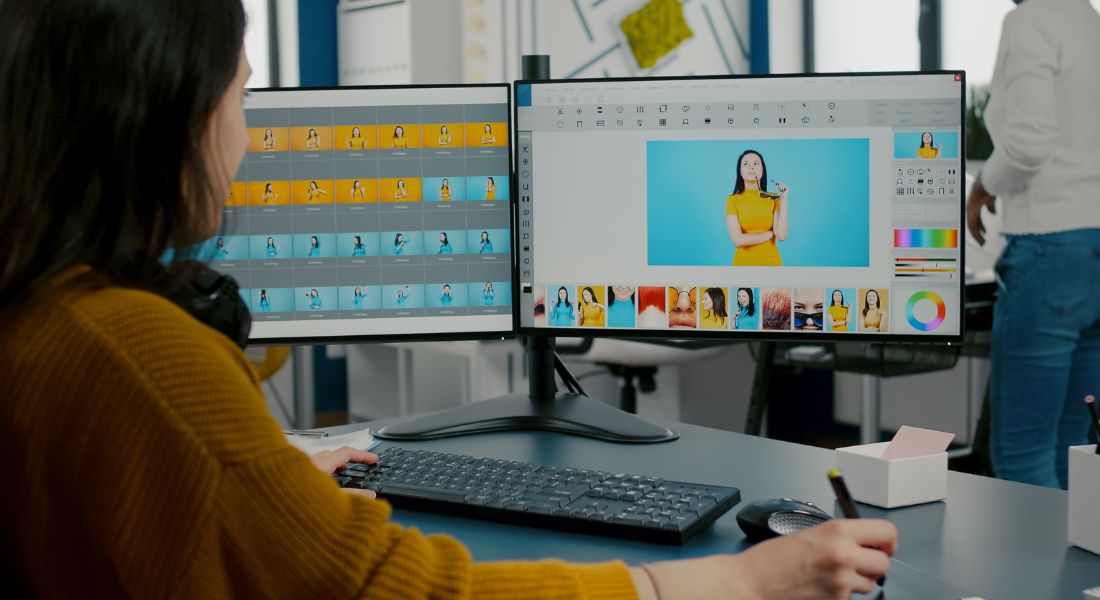
So, you want to bring your live-action footage to life with some animated characters, motion graphics, or quirky little visual surprises but your budget doesn’t quite stretch to high-end VFX studios or full-scale animation teams. The good news? You don’t need a Hollywood-sized budget to pull it off.
Blending 2D animation into live-action video is no longer reserved for big-name productions. Thanks to user-friendly software, open-source tools, and clever production techniques, even small teams or solo creators can achieve impressive results. With a bit of planning, a basic understanding of composition, and some creative flair, you can seamlessly integrate 2D elements into your live-action shots and make them feel like they belong.
Whether you’re creating a music video, a short film, a brand campaign, or just spicing up social content, this guide will walk you through the essential steps to keep your visuals polished without draining your wallet. From choosing the right style to working with motion tracking and clever layering tricks, you’ll learn how to create that slick mixed-media look that turns heads and tells your story more effectively.
Let’s dive in and explore how you can achieve high-impact results without the high price tag.
Why Combine 2D Animation with Live Action?
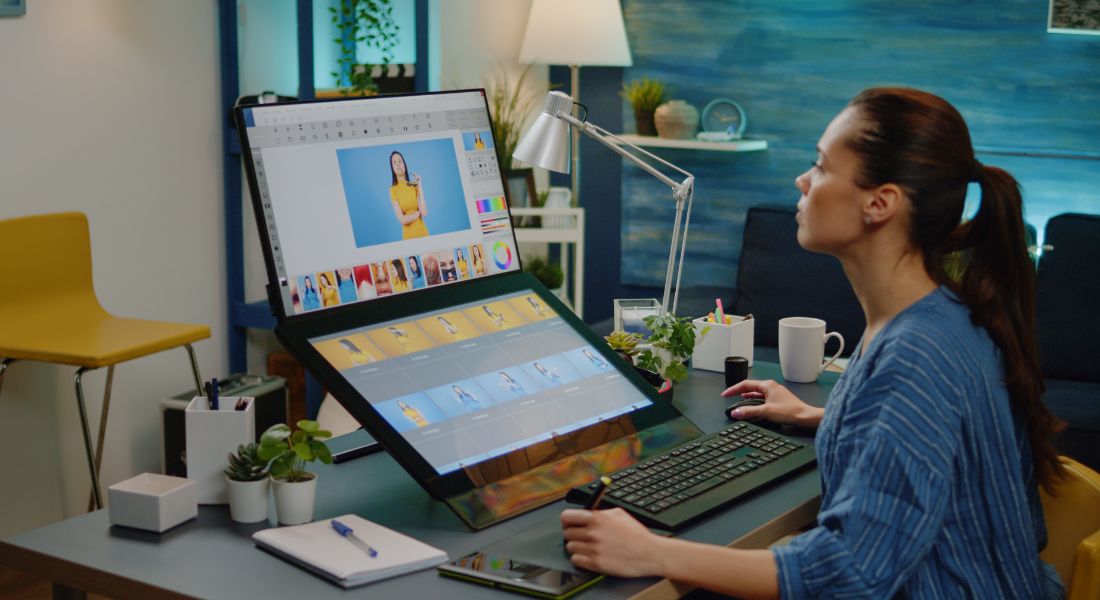
Whether you’re producing explainer videos, short films, social media content, or attention-grabbing ads, mixing live-action footage with 2D animation can take your visuals to the next level both creatively and strategically.
Here’s why this approach is so effective:
- Add Visual Flair and Personality
Animation allows you to introduce a unique visual language that’s often impossible with just a camera. From hand-drawn characters to bold graphic overlays, it lets you inject your brand’s personality or artistic style directly into the frame. - Highlight Key Messages or Data
Trying to explain a complex process, statistic, or abstract idea? 2D animation can break it down visually, helping your audience digest information faster. Think animated text, arrows, charts, or floating infographics that draw attention exactly where you want it. - Bring Imaginary Elements into the Real World
Want a character to interact with a floating thought bubble? A logo to transform and follow the actor’s movement? Or a magical element that reacts to a gesture? With 2D animation, you can add surreal or fantastical touches without needing a green screen or massive budget. - Keep Viewers Engaged Through Contrast and Surprise
The interplay between real-world visuals and stylised animation creates contrast and that contrast keeps people watching. It’s a great way to break up visual monotony, add humour or surprise, and make content feel more dynamic.
Best of all, you don’t need high-end CGI, complex 3D modelling, or a massive post-production house to get results that look polished. With a solid concept and the right tools, you can integrate 2D animation into your footage in a way that looks intentional, professional, and creative even if you’re working with a lean team and a tight budget.
Step 1: Plan with Integration in Mind

If you want your final video to look like a seamless blend of live-action and animation not a last-minute mashup start planning with integration in mind from the very beginning. The more thought you put into how your animated elements will interact with the physical environment during pre-production, the smoother your edit will be later on.
Here’s how to set yourself up for success:
- Storyboard Everything
Before you even pick up a camera, map out your scenes and identify where animated elements will appear. Are you adding a bouncing character next to your actor? Floating icons above their head? Motion graphics that interact with props? Having this clearly sketched out even if it’s rough helps your entire team understand what the final composite will look like and how to frame shots accordingly. - Use Placeholders on Set
It can be hard for actors or camera operators to visualise animations that don’t exist yet. That’s where placeholders come in. Use markers, props, tape, or stand-ins to show where animated elements will eventually go. This helps ensure correct eye-lines, spacing, and interaction, so the animation doesn’t feel “tacked on” in post-production. - Maintain Consistent Framing
Avoid excessive zooms, sudden pans, or handheld wobble unless you’re planning to track that motion later in editing. Animating over shaky or inconsistent footage makes clean integration much harder. If you know you’ll be overlaying graphics in a certain part of the frame, try to keep that area in clear view and relatively still throughout the shot.
Taking time to plan these details up front can save hours of frustration in post. It also ensures your animation complements the scene naturally, instead of feeling like it was dropped in at the last minute.
Step 2: Match the Lighting and Shadows
One of the quickest ways to break the illusion when blending 2D animation with live-action footage is mismatched lighting. If your animated character is brightly lit while the live-action scene is moody and dim or if shadows fall in different directions it creates a visual disconnect that instantly feels off. Viewers may not always be able to pinpoint what’s wrong, but they’ll feel something’s not quite right.
To avoid this, pay close attention to your lighting setup during the shoot and make sure your animated elements respond in a similar way. Here’s how to get it right:
- Observe the Direction and Intensity of Light
Take note of where the main light source is coming from in your scene whether it’s the sun, a lamp, or a studio light and how strong or soft it is. Your animation should reflect the same conditions. If your actor’s right side is in shadow, your animated object or character should cast shadows on the same side, too. - Match Light Sources and Shadow Angles in Your Animation
Use your animation software to adjust lighting direction and shadow angles so they’re consistent with your footage. Even simple 2D shadows can go a long way in making elements feel more grounded. It doesn’t have to be hyper-realistic just believable. - Add Contact Shadows to Anchor Objects
If you’re placing a 2D element on the floor, desk, or even floating nearby, consider adding a faint shadow beneath or behind it. This visual cue helps the viewer’s brain accept the animated item as part of the real environment, not just something floating above it. You can achieve this with simple blur and opacity tweaks. - Bonus Tip: Use Reference Photos or Test Shots
Before animating, snap a few stills of your scene or take quick test videos to examine how light behaves on real-world objects. This will help you match not just the angle of shadows, but also the colour temperature, contrast, and diffusion of your scene’s lighting in your animated layers.
When done right, matching lighting and shadows can make even the most stylised or cartoony animations feel like they truly belong in the scene. It’s a small detail that makes a big difference in selling the illusion.
Step 3: Use Camera Tracking (Even DIY)
If your camera moves, your animation has to move with it. Otherwise, your animated elements will feel like they’re “floating” or sliding awkwardly over the footage instantly killing any sense of realism. That’s where camera tracking (also known as motion tracking or match moving) comes into play.
Camera tracking allows you to analyse the movement of your camera in a scene whether it’s a slow pan, a tilt, or a handheld wobble and apply that same movement to your animated layers. This way, the animation stays locked into place relative to the live-action footage, giving the illusion that it was always part of the scene.
And the best part? You don’t need expensive software or a full-blown VFX department to do it. There are plenty of accessible tools some even free that can help you get convincing results with just a little practice.
Tools to Try:
- Adobe After Effects
If you already use After Effects, you’re in luck it includes a built-in 2D tracker that’s more than capable for many projects. For trickier shots or planar tracking (e.g. tracking surfaces like signs or screens), you can use the bundled Mocha AE plugin for more control and precision. - Blender
Blender isn’t just for 3D modelling it’s also a powerful compositing and camera tracking tool. And it’s completely free. You can import your footage, track camera movement in 3D space, and composite 2D elements into that scene with impressive realism. - HitFilm Express
Another great free option, especially for creators who are just starting out. HitFilm Express includes basic camera tracking features that let you pin 2D graphics to your live-action footage without too much technical complexity.
Once you’ve tracked your footage, you’ll simply need to parent or link your animation layers to the tracked camera data. This makes your 2D elements “move with the world” instead of drifting or staying static, helping them feel naturally embedded in the environment.
Camera tracking might sound intimidating at first, but with a few YouTube tutorials and some experimentation, it quickly becomes one of the most rewarding skills for mixed-media creators. Even basic tracking can make a huge difference in how polished and professional your video looks.
Step 4: Pay Attention to Perspective
Perspective might seem like a small detail, but it plays a big role in how believable your final composite looks. If your animated elements don’t follow the same vanishing points or horizon lines as your live-action footage, the illusion quickly falls apart. Even casual viewers will sense that something feels “off,” which can be distracting and take them out of the moment.
When adding 2D animation into a 3D world, make sure objects are drawn or scaled to match the angle of the environment around them. For example, a flat animation placed in a scene shot with a wide-angle lens may look unnaturally skewed if you don’t adjust its orientation and scale.
Tip: Most animation and compositing software allows you to overlay guide grids or rulers. Use these to help line up your layers with the background’s geometry. This ensures everything sits correctly in space and follows the scene’s natural depth and layout.
Maintaining proper perspective helps your animated elements feel grounded like they’re truly part of the world you’re filming, not just floating above it.
Step 5: Add DIY Interaction & Props
One of the most engaging ways to blend 2D animation with live action is through direct interaction when your actor points to, looks at, or even “touches” something animated. But for this to look convincing, you’ll need to do a little prep work during filming.
If your actor is supposed to grab an animated object or react to a cartoon character beside them, the timing and placement need to be spot on. Otherwise, the animation won’t feel connected to the scene, no matter how well it’s drawn or composited.
Here’s how to make these interactions more believable:
- Use Physical Props on Set
Simple stand-ins like a green stick, paper cut-out, or even a coloured foam shape can represent where the animated element will be added later. This gives actors something real to look at or touch, making their reactions more accurate and believable. - Record Eye Lines and Timing Carefully
Make sure your actor knows exactly where to look and how long to hold a gesture. If they’re interacting with a floating animation, mark the height and position clearly, and rehearse the movement so it aligns perfectly with your plan for animation. - Use Sound Cues During Filming
A quick sound cue like a beep or a verbal countdown can help actors time their reactions to something that doesn’t exist yet. This helps ensure the energy and emotion match what the animated moment will eventually look and feel like.
When done well, this kind of DIY interaction creates a natural bridge between the animated and physical worlds. It pulls viewers into the story and sells the illusion that both elements truly exist in the same space.
Step 6: Use Compositing for Finishing Touches
Once your live-action footage and 2D animation are placed together, it’s time to bring everything into one cohesive visual style and that’s where compositing comes in. This final stage is often where good mixed-media videos become great ones. Even small adjustments can make a huge difference in making your animated elements feel like they truly belong in the scene.
Here’s what to focus on during the compositing phase:
- Colour Grading to Match Both Elements
Your animation and live-action footage may have very different colour tones by default. Use grading tools to bring them into the same palette whether that means warming up your animation, cooling down your footage, or adjusting saturation and contrast to match the mood of the scene. - Blur and Depth of Field
If your live-action shot has a shallow depth of field (where only part of the image is in focus), your animation should respect that. Add slight blurs to animated elements that are meant to sit in the background or foreground to maintain the illusion of camera focus. - Film Grain or Digital Noise
One telltale sign of a pasted-on animation is that it looks too clean. Real camera footage often has a bit of grain or digital noise, especially in low light. Applying a subtle film grain or noise layer to your animation can help it blend in naturally with the live footage. - Light Flares, Glows, and Reflections
Adding soft light effects or glows especially when animations involve magical or sci-fi elements can help sell their presence in a physical space. If your animation gives off light, make sure the live environment reflects that, even subtly. These effects help unify the elements visually.
The good news? You don’t need Hollywood-grade software to do this. Tools like DaVinci Resolve (free) and Adobe After Effects (subscription-based) offer powerful compositing features that are accessible to indie creators, freelancers, and small teams alike.
Taking time to finesse your visuals in compositing is like putting the final polish on a painting it makes the entire piece feel intentional, cohesive, and professional.
Step 7: Keep Animation Styles Simple and Stylised
When it comes to blending animation into live-action footage, trying to make your animated elements look ultra-realistic often backfires. Unless you have the time, budget, and team to match every nuance of lighting, texture, and physics, photorealistic animation can easily end up feeling out of place or uncanny.
Instead of chasing realism, embrace a stylised 2D look. Stylisation signals to the viewer that the animation is meant to feel different and that intentional contrast can actually make your final video feel more polished and creative.
Here are a few style choices that work especially well:
- Hand-Drawn Effects
Think sketchy lines, squiggles, or animated doodles that appear to interact with the live footage. These are charming, fun, and intentionally rough around the edges which makes them easier to integrate without worrying about pixel-perfect realism. - Flat Motion Graphics
Clean, flat animations like icons, symbols, or text overlays can add modern, professional flair to your video. They’re ideal for explainer videos, social content, and ads where clarity and design consistency matter more than realism. - Comic-Book-Style Elements
Bold outlines, halftone textures, animated speech bubbles, and action bursts (like “BOOM!” or “ZAP!”) bring energy and personality, especially for content aimed at younger audiences or projects with a playful tone.
By choosing a stylised approach, you reduce the pressure to “match” your animation perfectly to the real world. Instead, the contrast becomes a feature not a flaw enhancing the visual interest of your video and giving you more creative freedom in how your story unfolds.
Recommended Affordable Software Stack
You don’t need a massive budget or high-end studio software to pull off great results. With the right combination of free or low-cost tools, you can achieve a professional look using a lean setup. Here’s a solid and affordable toolset to get you started:
- After Effects – A go-to choice for motion graphics, compositing, 2D animation, and camera tracking. While it’s subscription-based, it’s widely used and packed with features tailored for this type of work.
- Blender – Completely free and incredibly powerful. Blender offers not only 3D modelling and animation, but also camera tracking and basic compositing tools. A great option if you want to expand into 3D or match-move your 2D elements in 3D space.
- DaVinci Resolve – Ideal for colour grading and final polish. The free version includes advanced editing and visual effects features that can help you blend live-action and animation seamlessly, especially during the compositing phase.
- Krita or Procreate – Excellent for frame-by-frame hand-drawn animation. Krita is free and open source, while Procreate is an affordable one-time purchase for iPad users. Both are great for creating stylised effects or sketch-style overlays.
This toolset covers all the essentials animation, tracking, compositing, grading without breaking the bank. Whether you’re working solo or with a small team, it gives you everything you need to create compelling mixed-media content on a budget.
Final Thought: Bringing Animation and Live Action Together Affordably
You don’t need a blockbuster budget to pull off seamless animated + live-action content. With careful planning, lighting, tracking, and a few smart workarounds, you can produce high-impact visuals on a modest budget.
Contact our animation company in London to enhance your content with expert support. Whether you need motion graphics, camera tracking help, or a full animated/live-action blend we’ve got the tools and know-how.
